Your repository
Encrypted files go directly to your chosen private GitHub repository; Madu does not operate an additional relay server. You can revoke its token at any time.
Madu (Codex to Codex) encrypts and syncs Codex tasks and skills between Windows and macOS. Data goes only to your private GitHub repository, and every transfer is initiated by you.
WHY MADU
Encrypted files go directly to your chosen private GitHub repository; Madu does not operate an additional relay server. You can revoke its token at any time.
Nothing uploads in the background. You initiate every download, selection, and upload.
Tasks include messages, replies, and plans. Skills include SKILL.md, scripts, assets, and references, while common credentials and caches are blocked.
THE SAFE PROTOCOL
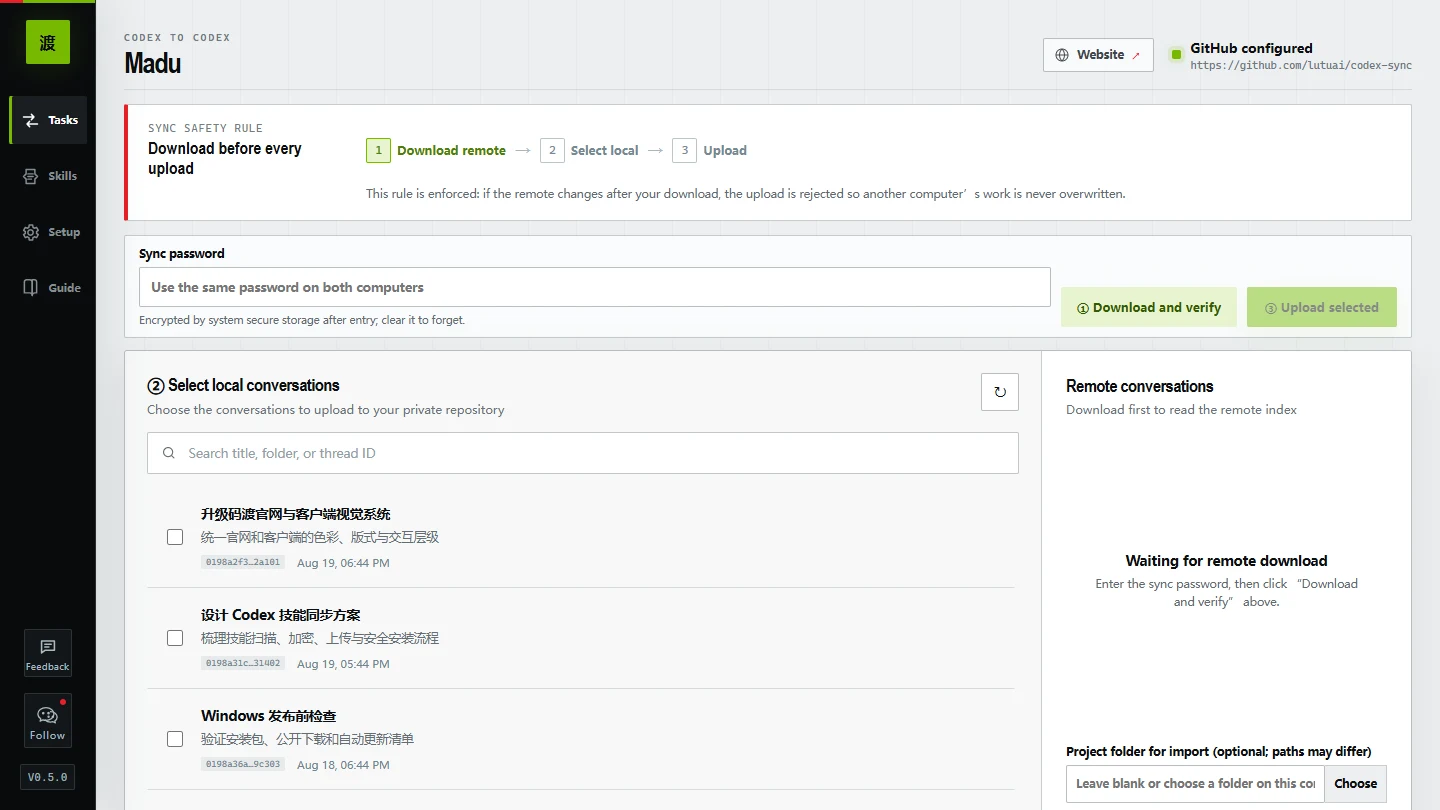
This is an enforced conflict check, not a reminder you can skip.
Read encrypted remote tasks and skills and record the current Git commit.
Only the tasks or skills you select are encrypted and uploaded.
If the remote changes after your download, Madu blocks the upload and asks you to download again.
DESKTOP CLIENT
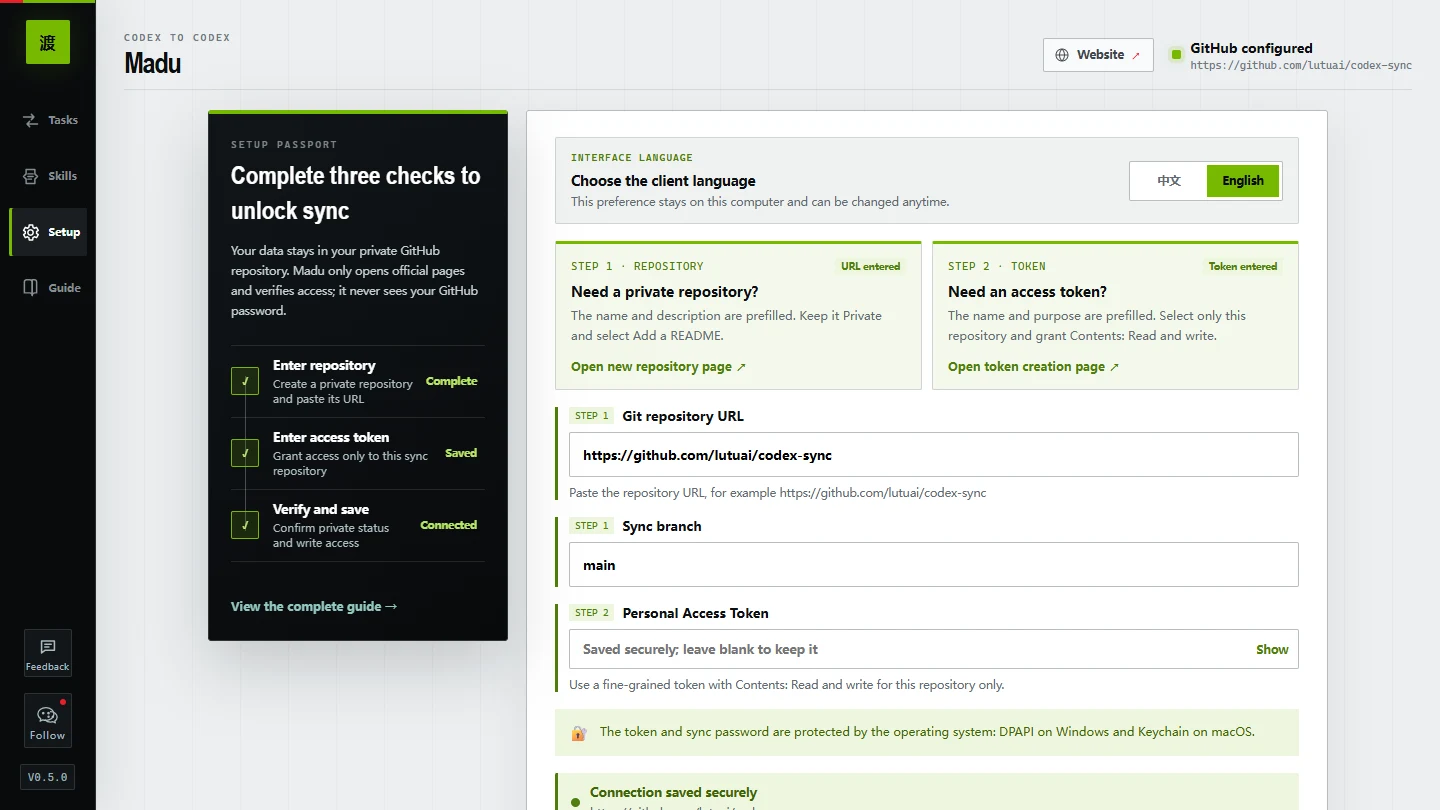
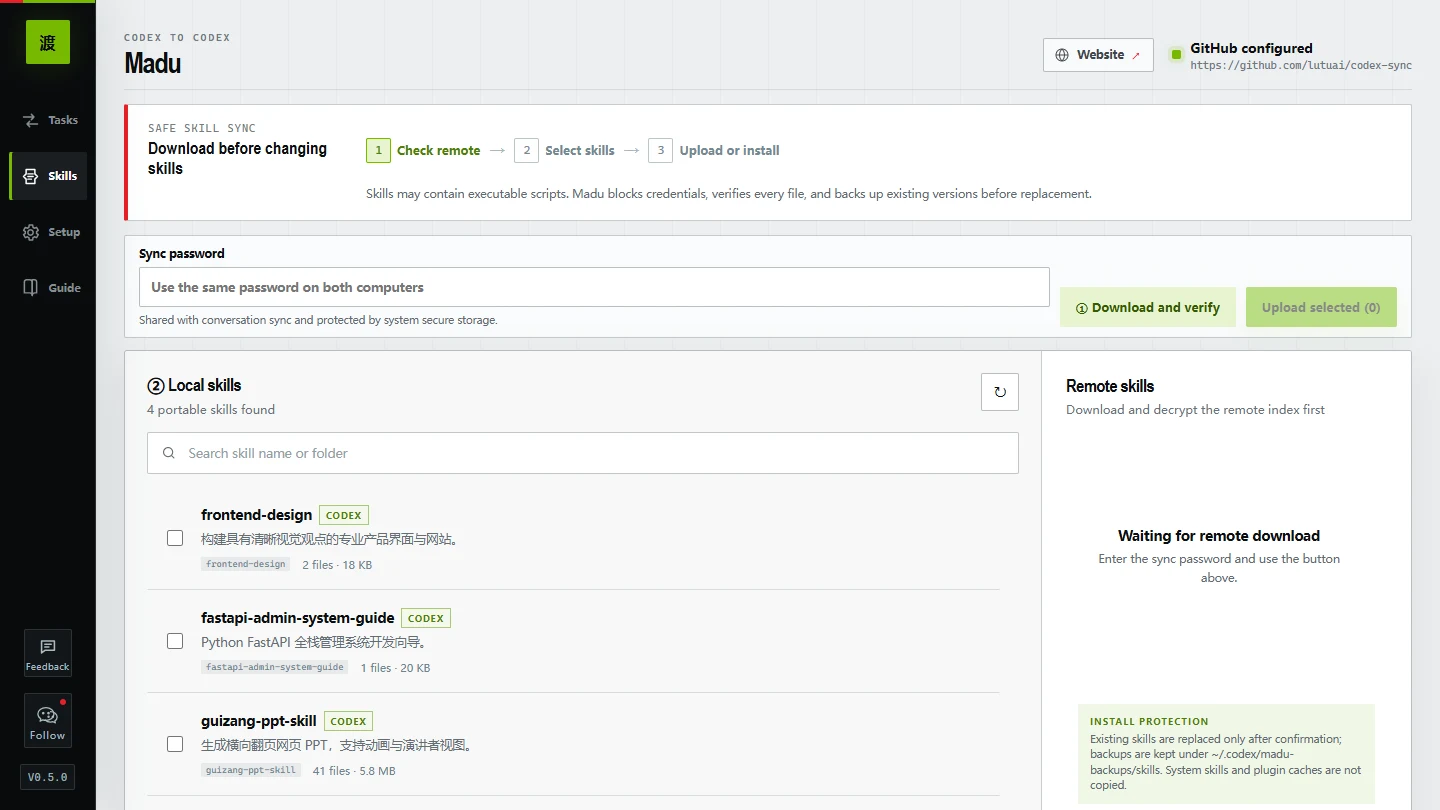
Tasks, skills, repository setup, and the guide each have a clear destination. Skill files are verified before installation and existing versions are backed up before replacement.
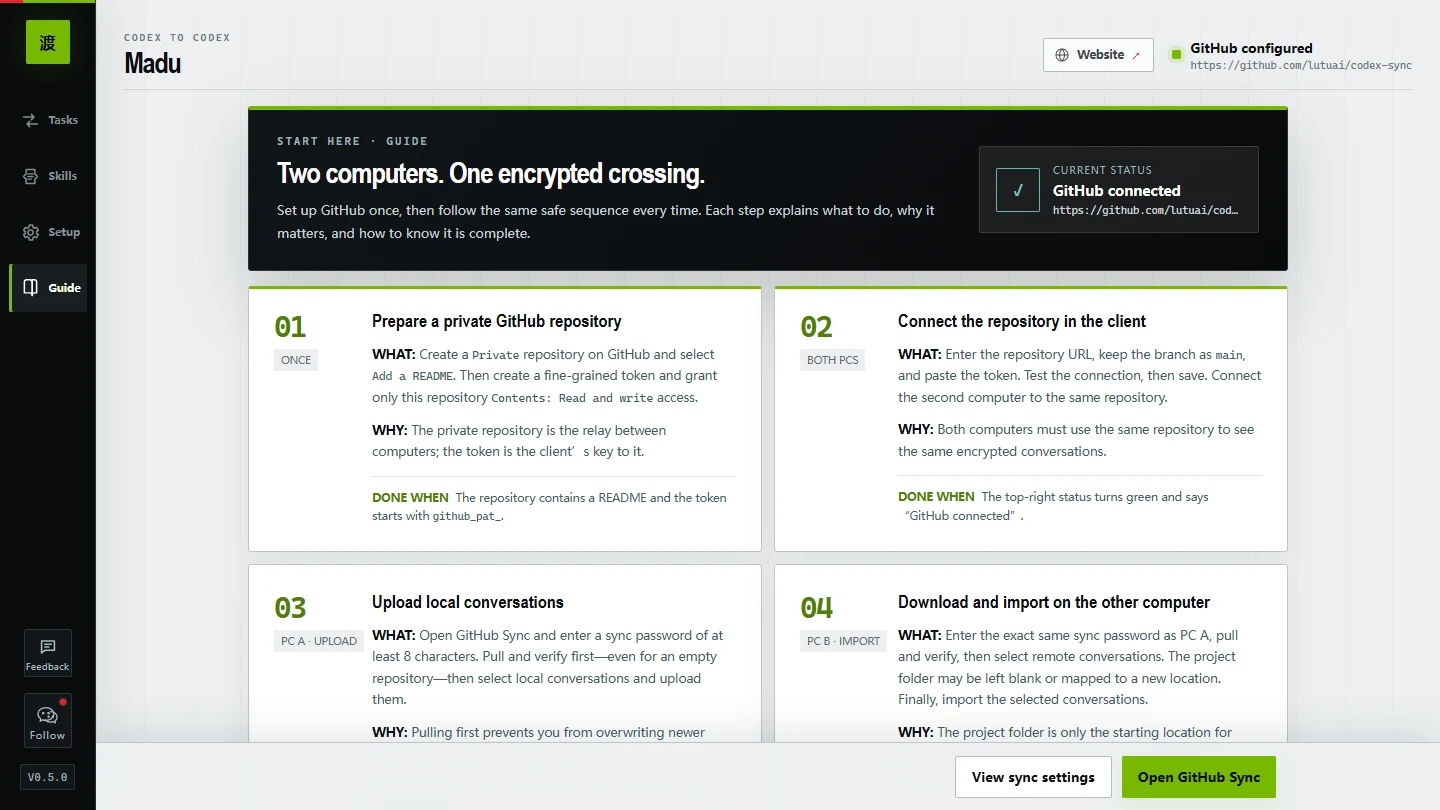
ENCRYPTED BEFORE UPLOAD
Tasks and skills are encrypted with AES-256-GCM before leaving your computer and stored as .c2c files. Skill installation verifies SHA-256 hashes, blocks path traversal, and backs up existing versions. The operating system protects both the sync password and GitHub token.
CROSSING RECORDS
These answers describe how the current version actually works, so you can decide whether Madu fits your Codex workflow.
Madu is a tool for syncing Codex conversations across computers. It encrypts selected conversations locally, stores them in your private GitHub repository, and lets you download and import them on another computer.
The current version syncs user messages, assistant replies, and historical plans. Madu does not separately package tool logs, local credential stores, or project files. However, tokens, passwords, or other secrets already present in selected conversation messages will still be transferred.
Madu scans .codex/skills and .agents/skills and transfers SKILL.md, scripts, assets, and references. System skills, plugin caches, node_modules, virtual environments, and common credential files are not copied.
Encrypted conversations are stored as .c2c files directly in the private GitHub repository you choose. Madu does not operate an additional relay server.
Conversation content is encrypted with AES-256-GCM before leaving your computer. GitHub can see the .c2c files and commit metadata, but without the correct sync password it cannot read remote conversation titles or plaintext content.
No. Madu does not upload in the background. You initiate every download, conversation selection, and upload.
Before every upload, Madu requires a remote download and records the current Git commit. If the repository changes before upload, Madu blocks the write and asks you to download again.
The repository must be initialized and private, and the token needs Contents: Read and write permission. For least privilege, use a fine-grained Personal Access Token limited to that repository.
They are encrypted on the current computer with Electron safeStorage, using DPAPI on Windows and Keychain on macOS. Clearing the sync password field also deletes the remembered sync password.
Madu provides a Windows x64 installer and universal macOS 12+ DMG and ZIP packages for Apple Silicon and Intel. The current macOS packages are not Apple Developer ID signed or notarized.
No. An imported conversation can open directly in the running Codex app.
No. Madu is an independent third-party tool. It is not an official OpenAI product and is not endorsed by OpenAI. Codex is an OpenAI product name.
THE NAME OF THE CROSSING
I imagine every Codex conversation as a small boat carrying a train of thought.
“Ma” points to code—and the context we build with AI.
“Du” means crossing: carrying unfinished ideas safely from one computer to another, so the work can continue.
Your data stays in your repository and every transfer starts with you; Madu only carries the selected working context to another computer.
ABOUT THE MAKER
I’m Lutu AI (鹿先森), a practitioner focused on putting AI into real daily work. I study Codex, automation workflows, and practical AI tools—and share both the pitfalls and the methods worth reusing.
“A tool proves its value not in a demo, but when it reliably carries the next piece of real work.”
Scan with WeChat for Codex workflows, practical AI tools, and field notes.
START CROSSING
Current version v0.5.0. Windows x64 and universal macOS 12+ packages are now available from the public GitHub Release. The current macOS packages are not signed or notarized.
Follow the complete path from GitHub token setup to your first cross-computer sync.